Booking Process Overview
This page describes the experience of the potential renter when booking your cabin. This is an overview and is intended to provide you with an understanding of the process as a whole.
Later pages will describe the processes you will perform to accept and manage your bookings.
To book the cabin, the renter will complete the following steps:
View Cabin Availability and Ask Questions
Before booking the cabin, a potential renter can view the available rental dates on your cabin website. The current availability is kept up-to-date on the booking page of the website and potential renters can see the most current information by visiting the site.
Ideally, potential renters will review your cabin availability and request to book the cabin without ever needing to contact you with questions.
If a potential renter has questions before renting, they can contact you to clarify those questions. If your website includes a "Contact" form, the potential renter can complete that form to send you an email message. Otherwise, the potential renter will need to contact you using whatever other contact information you have published about your cabin.
Request to Book
When the potential renter is ready to book your cabin, they should navigate to the booking page of your website.
On the booking page, the potential renter should choose the dates that they wish to book and complete the other form fields. The booking system will enforce any booking restrictions (minimum stay, check-in and check-out days, weekly-only rentals during the summer, etc).
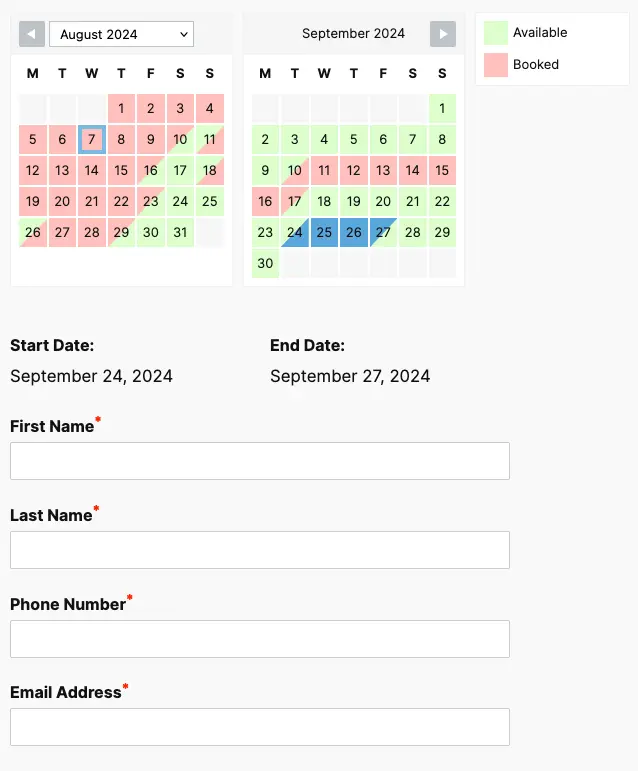
The booking form will automatically calculate the cost of your cabin rental for the dates the renter selected. It will take into account any discounts (weekly rates) and booking requirements (minimum nights), and will display the total including cleaning fee and security deposit.
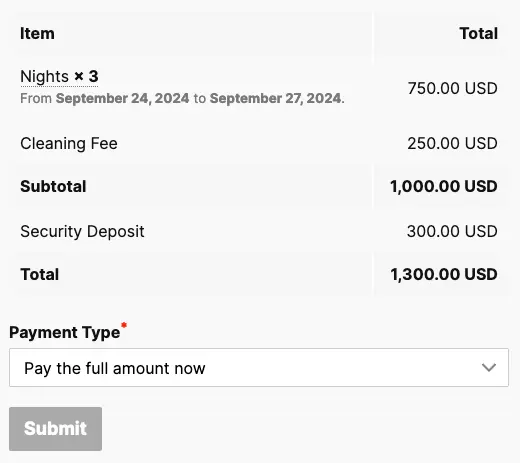
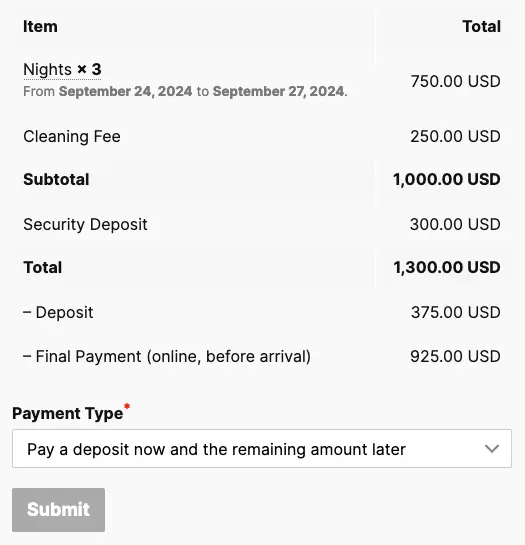
If your booking system is configured to allow renters to pay a deposit instead of the full rental amount, and if the booking is far enough in the future to satisfy the requirements that are configured in your booking system, the renter will be presented with an option to choose whether they wish to pay the full amount or pay a deposit to hold their booking. If the rental is not eligible for a deposit, then the deposit field will not display.
If the renter chooses to pay a deposit, the pricing information will automatically update to calculate the deposit price.
Once the potential renter has completed the form, they will click the button to submit their request.
If your site offers payment by credit card using Stripe, the form will then display a field requesting the potential renter submit their credit card information.
If your site does not offer payment by credit card using Stripe, the form will then display information on how the renter should pay you. For example, it may provide your Zelle or Venmo username, your mailing address to receive a check, or any other text you have configured.
Once the potential renter has completed the booking request (including submitting payment information if using Stripe), a message will be displayed on-screen that says "Thank you for requesting booking! We will be in touch with you soon." 1 The potential renter will also receive an email message confirming receipt of their booking.2
If your site offer payment by credit card using Stripe, when the renter's request is submitted, their credit card is authorized but is not charged. The card will only be charged once you approve the booking request.
Owner Review
Upon submission of a new rental request, the potential renter will wait to hear from you. The system will email you with details of the rental booking request. You will need to review the rental and either accept or deny the rental request.
Hume Information Form
While the renter is waiting to hear from you to confirm their rental request, they will also receive an email asking them to complete the Hume Information Form.
You can read more about this process at Hume Cabin User Form.
Booking Accepted
Once you have accepted a pending booking, the following processes occur:
Credit Card Charge Captured
If you site offers payment by credit card using Stripe, the renter's credit card will automatically be charged their first payment when you accept the pending rental request.
Confirmation Email
The renter will receive an email informing them that their rental is confirmed.
Balance Payment
If the renter opted to pay a deposit instead of their full rental, the system will automatically send the renter an email several days before their final payment is due informing the renter that their payment is due.
If your site offers payment by credit card using Stripe, the email will include a unique URL the renter can use to submit their final payment. Otherwise, the email will include instructions for the renter to send you their final payment (as configured in Email Notifications > Final Payment Reminder Notification).